QuickBooks Web Connector helps QuickBooks Desktop exchange information with compatible third-party applications, such as business management tools, e-commerce platforms, and other connected services. When this connection fails, you may see QuickBooks Web Connector Error QBWC1039 while adding an application, opening QuickBooks, or attempting to synchronize data.
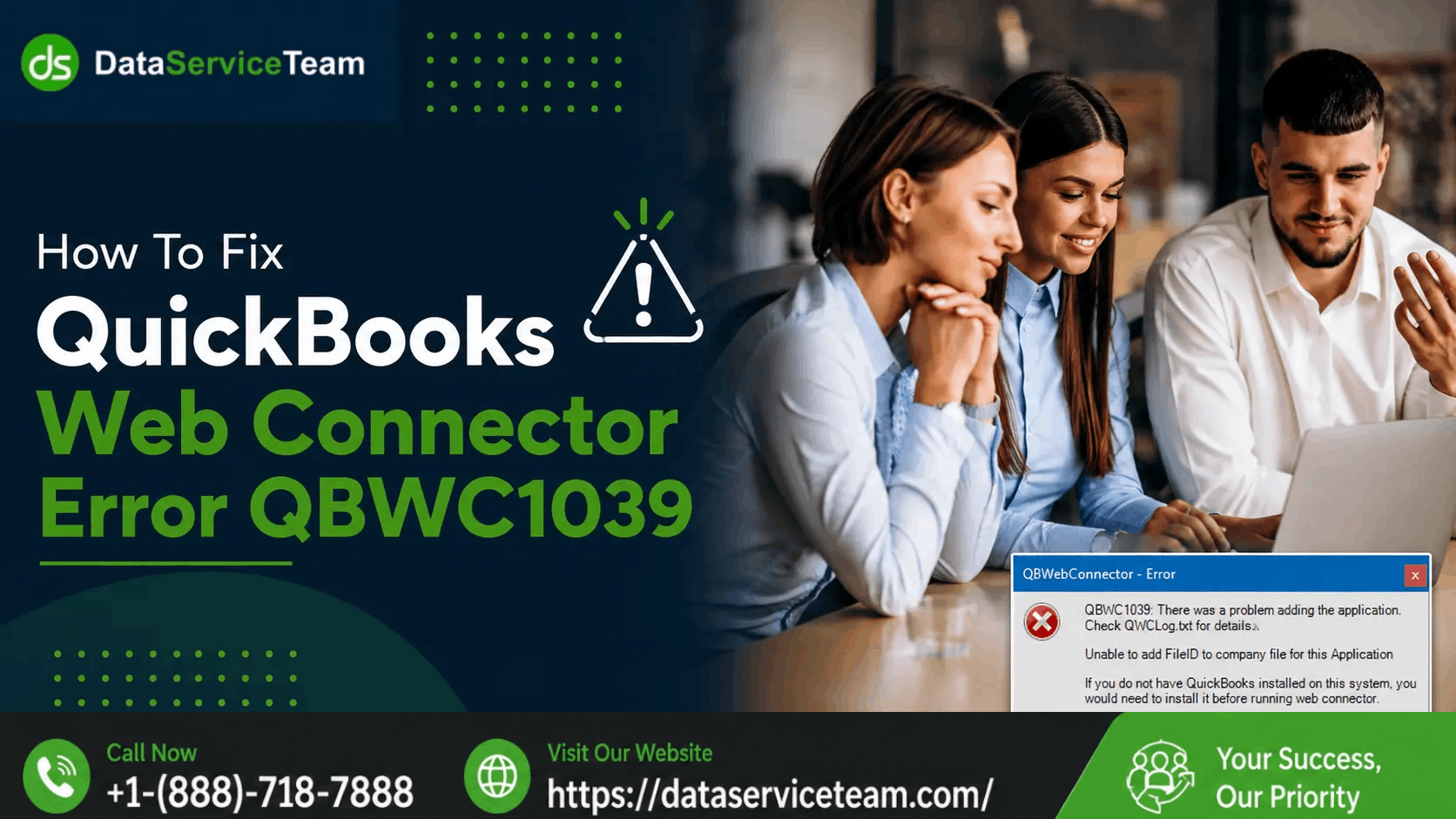
The challenge is that QBWC1039 is not limited to one problem. The message can indicate that QuickBooks cannot locate the expected company file, an application does not have the required authorization, or an existing Web Connector registration conflicts with a new one.
Instead of reinstalling everything immediately, identify the exact error message and follow the corresponding troubleshooting steps. This guide explains how to fix QBWC1039, check application permissions, restore company-file paths, and safely reconnect QuickBooks Desktop with a third-party application.
What Is QuickBooks Web Connector Error QBWC1039?
QuickBooks Web Connector Error QBWC1039 occurs when Web Connector cannot complete a particular application-to-QuickBooks operation. The underlying cause depends on the message displayed.
You might encounter wording such as:
- “Error connecting to QuickBooks.”
- “The QuickBooks company data file is not open.”
- “This application does not have permission to access this QuickBooks company data file.”
- “This application has not accessed this QuickBooks company data file before.”
- “There was a problem adding the application.”
- “Unique OwnerID/FileID pair value required.”
These messages point to different situations. For example, an authorization problem requires checking application permissions, while a duplicate OwnerID/FileID message concerns application registration.
Important: Before changing settings, record the complete error message and identify the affected third-party application. This helps prevent unnecessary changes to your company file or integration settings.
Common Causes of QBWC1039
Understanding the cause can help you select the appropriate fix.
1. The company file was moved or renamed. Web Connector or the connected application may still reference the previous file name or location.
2. The application lacks authorization. The QuickBooks administrator may not have approved the third-party application's access to the company file.
3. QuickBooks is not open when required. Some integrations need the company file to be open, while others can be configured to run when QuickBooks is closed.
4. The application was added incorrectly. A .QWC configuration file may have been added without the required administrator login or company-file access.
5. The application was registered more than once. An existing application registration can conflict with another attempt to add the same integration.
6. QuickBooks releases are not properly maintained. An outdated or incomplete installation can interfere with Web Connector operations.
The correct solution depends on which of these conditions matches your error.
How to Fix QuickBooks Web Connector Error QBWC1039
Follow the methods below in order, but prioritize the method that matches the exact message on your screen.
Method 1: Confirm the Company File Name and Location
This is an important first check when the error mentions that QuickBooks cannot connect or that the company data file is not open.
Step 1: Open QuickBooks Desktop
Launch QuickBooks Desktop and sign in using the appropriate account. Open the company file normally used by the connected application.
Step 2: Check the company file
Confirm that the correct company file is open. If the file was recently renamed or moved, Web Connector or the third-party application may still expect the previous location.
Step 3: Review recent file changes
Ask whether anyone recently changed the file name, moved it to another folder, restored a backup, or transferred it to a different computer.
Step 4: Restore the expected path if appropriate
If the file was moved or renamed unintentionally, restoring the previous name or location may resolve the mismatch.
If you intentionally moved the file, do not blindly move it back. First create a backup, identify the application that references the old path, and contact the integration provider if its configuration needs updating.
For related company-file access problems, see the QuickBooks company-file communication troubleshooting guide.
Method 2: Review Third-Party Application Permissions
If QBWC1039 says the application does not have permission to access the company data file, review its authorization in QuickBooks Desktop.
Step 1: Sign in as the QuickBooks administrator
Open QuickBooks Desktop and sign in as the Admin user. If you are not the administrator, ask the person responsible for the company file to complete the steps.
Step 2: Switch to Single-user Mode if necessary
If QuickBooks is operating in Multi-user Mode, follow the supported procedure to switch to Single-user Mode before changing the relevant authorization settings.
Coordinate with other users first so that nobody loses unsaved work.
Step 3: Open Integrated Applications preferences
Navigate to:
- Edit
- Preferences
- Integrated Applications
- Company Preferences
The exact labels may vary slightly by product version.
Step 4: Review the application authorization
Locate the affected third-party application and inspect its access settings. If the message indicates that access is blocked, review the relevant company-file application permissions.
Only change settings necessary for the trusted integration. Do not enable unrestricted access for every application just to bypass the error.
Step 5: Approve the trusted application
If QuickBooks displays an authorization or SDK access prompt, verify the application's identity and approve it only if you recognize and trust the integration.
Save the changes, return to the intended operating mode, and retry the connection.
Method 3: Configure Web Connector to Run When QuickBooks Is Closed
Some integrations are configured to run while QuickBooks Desktop is closed. If the application requires this behavior but has not been authorized for it, QBWC1039 may appear.
Before enabling automatic access, confirm that the connected application genuinely requires this configuration and that you trust its publisher.
- Open QuickBooks Desktop and sign in as the administrator.
- If necessary, switch to Single-user Mode.
- Select Edit, then Preferences.
- Open Integrated Applications.
- Select the Company Preferences tab.
- Choose the relevant third-party application.
- Select Properties, if available.
- Review the option labeled Allow this application to log in automatically.
- If appropriate for the integration, enable the option and complete the authorization prompts.
- Select the appropriate user account when prompted, then save the changes.
Close and reopen the relevant applications as needed, then test the synchronization.
Do not grant automatic login to an unfamiliar application. Automatic access can affect how a connected service interacts with company data.
Method 4: Add the QWC Application While Signed In as Admin
If the error says the application has not accessed this QuickBooks company data file before, the integration may have been added without the required administrator session.
A .QWC file contains configuration information used to connect a compatible application to QuickBooks Web Connector.
To correct an initial authorization issue:
- Open QuickBooks Desktop.
- Sign in as the QuickBooks administrator.
- Switch to Single-user Mode if required.
- Open QuickBooks Web Connector.
- Choose Add an Application.
- Browse to the legitimate
.QWCfile supplied by the integration provider. - Review the application identity and authorization request.
- Approve access only if you recognize the application and understand the requested permissions.
After adding the application, follow the integration provider's instructions to configure credentials and run a synchronization test.
Do not download a replacement .QWC file from an unknown source. If the configuration file is missing or outdated, request a valid copy from the software provider.
Method 5: Check for Duplicate Application Registration
If the message mentions a unique OwnerID/FileID pair or indicates that the application already exists, adding it again may not be the correct solution.
QuickBooks Web Connector uses application identifiers to distinguish registrations. Repeatedly adding the same integration can create a registration conflict.
Start by opening Web Connector and reviewing the existing application list. Confirm whether the integration is already present.
If it is listed, do not add it repeatedly. Check the provider's instructions for reconnecting an existing application.
If the registration is corrupted or the error specifically indicates that an OwnerID must be removed, seek instructions from Intuit or the integration provider for the appropriate recovery procedure. Some cases involve a specialized CP3 utility and require careful handling of the application configuration.
Do not remove application identifiers or modify configuration files without a clear reason. If the connected service is used for order processing, payroll, inventory, or financial reporting, coordinate the change with the provider before resetting its registration.
Method 6: Check QuickBooks Desktop Updates
If the file path and authorization appear correct, check whether the installed QuickBooks Desktop release needs an update.
- Close unnecessary applications.
- Open QuickBooks Desktop.
- Check the available product update options.
- Install applicable updates using the supported process for your edition.
- Restart the computer if prompted.
- Open the company file and retry the Web Connector operation.
If multiple QuickBooks Desktop versions are installed, note which version is associated with the integration. Avoid uninstalling or removing another version until you understand whether any connected service depends on it.
Method 7: Review Web Connector Logs
If the error persists, review the Web Connector log for additional diagnostic details. Intuit's troubleshooting guidance identifies QBWCLog.txt as a useful file when investigating certain Web Connector errors.
The log may help distinguish a company-file access problem from an application setup or connection issue.
Before sharing logs, review them for sensitive information. Integration logs can contain business details or technical information that should not be posted publicly.
If you cannot interpret the log, provide the relevant error message and sanitized diagnostic details to the third-party application provider or a qualified QuickBooks technician.
What If QBWC1039 Still Appears?
If the usual fixes do not resolve the problem, stop repeating the same steps and narrow down the cause.
Check the following questions:
- Does the error occur while adding the application or during synchronization?
- Can QuickBooks open the intended company file normally?
- Was the company file recently moved, renamed, restored, or transferred?
- Does the application appear in Web Connector already?
- Has the QuickBooks administrator authorized the integration?
- Does the third-party application provider report a configuration or compatibility problem?
- Does the Web Connector log show a more specific error?
If QuickBooks itself cannot access the company file, investigate that problem separately. You may find the QuickBooks Error 80070057 troubleshooting guide useful for related company-file access and configuration issues.
For persistent integration problems, contact the application's support team. The provider may need to update the company-file path, issue a new configuration file, or help repair the integration registration.
How to Prevent Future Web Connector Errors
A few maintenance practices can reduce the likelihood of similar problems:
- Keep a secure backup before moving or renaming a company file.
- Document the active company-file path and the applications that use it.
- Authorize only trusted third-party applications.
- Avoid adding the same integration repeatedly.
- Keep QuickBooks Desktop and supported integration components maintained.
- Coordinate changes to a hosted or multi-user environment.
- Keep a record of the last successful synchronization and any new error messages.
- Review access permissions when an employee or service provider no longer needs them.
These precautions are especially important when Web Connector transfers information between accounting software and other business systems.
Frequently Asked Questions
What does QuickBooks Web Connector Error QBWC1039 mean?
QBWC1039 is associated with several Web Connector connection and application setup problems. The exact message can indicate a company-file location mismatch, missing authorization, incorrect application setup, or a duplicate registration.
Can moving a company file cause QBWC1039?
Yes. If Web Connector or the connected application still expects the previous file location or name, it may fail to find the company file. Confirm the path and update the integration configuration where appropriate.
How do I fix QBWC1039 when an application lacks permission?
Sign in as the QuickBooks administrator, open Integrated Applications preferences, and review the authorization for the trusted application. Approve only the access needed for the integration.
Should I reinstall QuickBooks Web Connector?
Not as the first step. Check the exact message, company-file location, application permissions, and existing registration. Reinstallation may not correct a configuration or authorization problem.
Is it safe to allow an application to log in automatically?
It depends on the application and the business requirement. Enable automatic login only for an application you recognize and trust, after reviewing the permissions it needs.
What is a QWC file?
A .QWC file is a configuration file used to connect a compatible web service application to QuickBooks Web Connector. Obtain it from the legitimate application provider and review the application identity before authorizing access.
Conclusion
QuickBooks Web Connector Error QBWC1039 can arise from several different issues, so the exact message should guide your troubleshooting. Check the company-file path first when the error mentions a missing file, review Integrated Applications permissions when access is denied, and investigate existing registrations when the message refers to OwnerID/FileID values.
Keep backups before changing company-file locations, authorize only trusted applications, and avoid repeatedly adding or resetting integrations without understanding the cause. If the problem continues, use the Web Connector log and contact the integration provider for application-specific support.
For more QuickBooks troubleshooting resources, visit Data Service Team. For assistance with QuickBooks Desktop connectivity and company-file issues, contact Data Service Team at +1-(888)-718-7888.